

Appearance
Platform Account management
The Tailor Platform enables comprehensive account management for admins and developers through the Console. This functionality is key to managing user permissions, roles, organization accounts, folders, and teams, facilitating effective collaboration and resource organization.
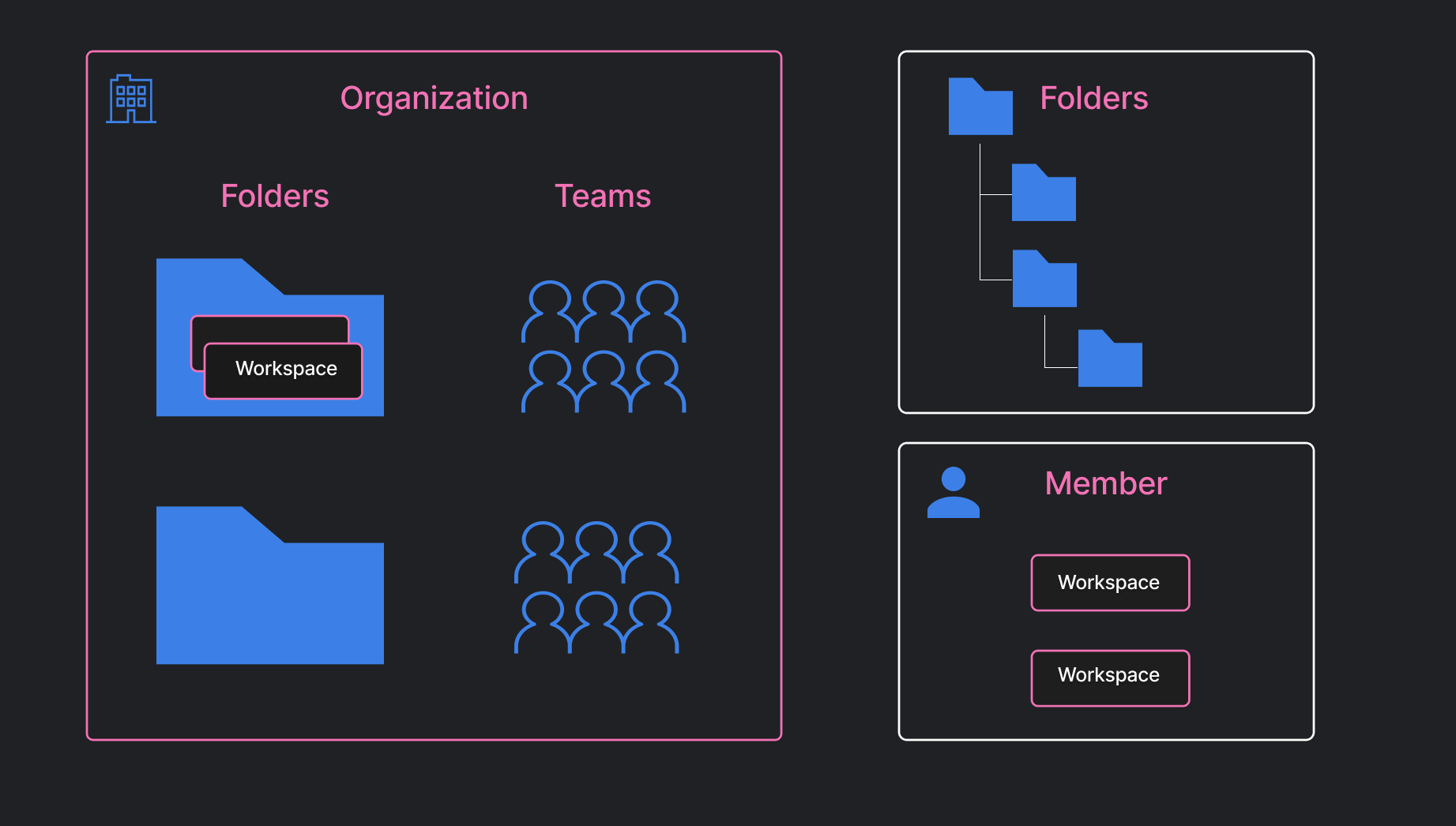
The Platform implements a hierarchical structure to organize accounts and manage access:
Structure Overview
Organizations
- Folders
- Workspace
- Folders
Teams
- Members
Each level (Organization, Folder, Team) supports role-based access control to help manage permissions efficiently at every layer.
To get started, please contact us to create an Organization.
Organization
Organization admins and editors manage teams and folders, while viewers can develop apps within assigned workspaces.
Roles and permissions define access and responsibilities.
Every permission is either a view or a manage. Viewing something is generally granted one role lower than changing it, so a viewer can see how the organization is set up without being able to alter it. The exception is anything that returns a credential — machine users — which stays with admins in both directions.
Here's a list of permissions for each role
| Permission | Admin | Editor | Viewer |
|---|---|---|---|
| View the organization | ✅ | ✅ | ✅ |
| Modify the organization | ✅ | 🚫 | 🚫 |
| View organization access controls | ✅ | ✅ | ✅ |
| Manage organization access controls | ✅ | 🚫 | 🚫 |
| View folders and workspaces | ✅ | ✅ | ✅ |
| Create folders | ✅ | ✅ | 🚫 |
| Modify folders | ✅ | ✅ | 🚫 |
| View teams and their members | ✅ | ✅ | ✅ |
| Create teams | ✅ | ✅ | 🚫 |
| Manage team members | ✅ | ✅ | 🚫 |
| View IP restrictions | ✅ | ✅ | ✅ |
| Manage IP restrictions | ✅ | 🚫 | 🚫 |
| View machine users | ✅ | 🚫 | 🚫 |
| Manage machine users | ✅ | 🚫 | 🚫 |
Organization roles apply all the way down the hierarchy. An organization editor can act on every folder and workspace in the organization without being granted a role on them individually.
Folders
You can organize workspaces using folders and control team access. As a Folder admin, you can invite team members individually or an entire team with specific roles, ensuring members only interact with relevant resources.
Here's a list of permissions for each role
| Permission | Admin | Editor | Viewer |
|---|---|---|---|
| View the folder | ✅ | ✅ | ✅ |
| Modify the folder name | ✅ | 🚫 | 🚫 |
| View folder access controls | ✅ | ✅ | ✅ |
| Manage folder access controls | ✅ | 🚫 | 🚫 |
| Manage folders | ✅ | 🚫 | 🚫 |
| Manage sub folders | ✅ | ✅ | 🚫 |
| View workspaces | ✅ | ✅ | ✅ |
| Manage workspace | ✅ | ✅ | 🚫 |
| View IP restrictions | ✅ | ✅ | ✅ |
| Manage IP restrictions | ✅ | 🚫 | 🚫 |
| View machine users | ✅ | 🚫 | 🚫 |
| Manage machine users | ✅ | 🚫 | 🚫 |
Sub folder creators are granted admin rights only for the subfolder they create
Roles are inherited down the folder tree: a role on a folder applies to everything nested inside it. An editor on a parent folder can therefore manage a child folder, including its access controls, even though an editor cannot manage the folder the role was granted on.
To create a new folder from the Console, open the organization, choose to create a new folder, and enter the folder name.
To create a new workspace, open the organization or folder it belongs in, choose to create a new workspace, then select the region and enter the workspace name.
Workspaces
A workspace can be shared with people directly, in addition to whatever access they inherit from the organization or the folder above it.
Here's a list of permissions for each role
| Permission | Admin | Editor | Viewer |
|---|---|---|---|
| View the workspace | ✅ | ✅ | ✅ |
| Modify the workspace | ✅ | ✅ | 🚫 |
| Delete the workspace | ✅ | 🚫 | 🚫 |
| View workspace access controls | ✅ | ✅ | ✅ |
| Manage workspace access controls | ✅ | 🚫 | 🚫 |
| View apps and resources | ✅ | ✅ | ✅ |
| Create and modify resources | ✅ | ✅ | 🚫 |
| Run functions and workflows | ✅ | ✅ | 🚫 |
| View the activity log | ✅ | ✅ | 🚫 |
| View authentication settings | ✅ | ✅ | 🚫 |
| Manage secrets | ✅ | 🚫 | 🚫 |
| Delete all records in a type | ✅ | 🚫 | 🚫 |
The activity log and authentication settings are the two reads that stop at editor. Both expose how a workspace is accessed rather than what it contains.
Teams
You can manage teams by inviting organization members and assigning roles to the team members.
Here's a list of permissions for each role
| Permission | Admin | Manager | Member |
|---|---|---|---|
| View the team and its members | ✅ | ✅ | ✅ |
| Modify the team name | ✅ | 🚫 | 🚫 |
| Manage team members | ✅ | ✅ | 🚫 |
Team members can see their own team regardless of their organization role.
To create a team, open the organization settings in the Console and add a new team.