

Console

The Console is a web-based interface that gives you a unified view of everything running inside the Tailor Platform. It’s designed to simplify observability and operational workflows by letting you quickly inspect resources, interact with data, and manage workspaces.

With the console, you can monitor platform resources in real time, explore and work with data, manage workspaces and their assets, and perform key operational actions such as importing data or managing secrets.

Core Capabilities

The Console provides the following key features:

  • Application Overview: View and manage your deployed applications with a comprehensive dashboard
  • GraphQL Playground: Test and execute GraphQL queries and mutations with an embedded playground
  • Schema Management: Browse data models and database schemas
  • Pipeline Management: Monitor and debug pipeline executions with detailed logs
  • User Role Management: Configure platform user roles and permissions for workspace access
  • Organization Management: Manage organization settings and configurations
  • Organization User Role Management: Configure and manage user roles and permissions at the organization level
  • Data Operations: Import and view table data with pagination
  • Manage Secrets: Create and update secrets in the workspace settings
  • Workspace Management: Configure and manage workspace-level settings and integrations

Explore Your New App

After deploying your application, the console gives you several ways to explore, manage, and work with your app’s data and resources.

Test with GraphQL Playground

In the application, select the GraphQL Playground from the left navigation panel.
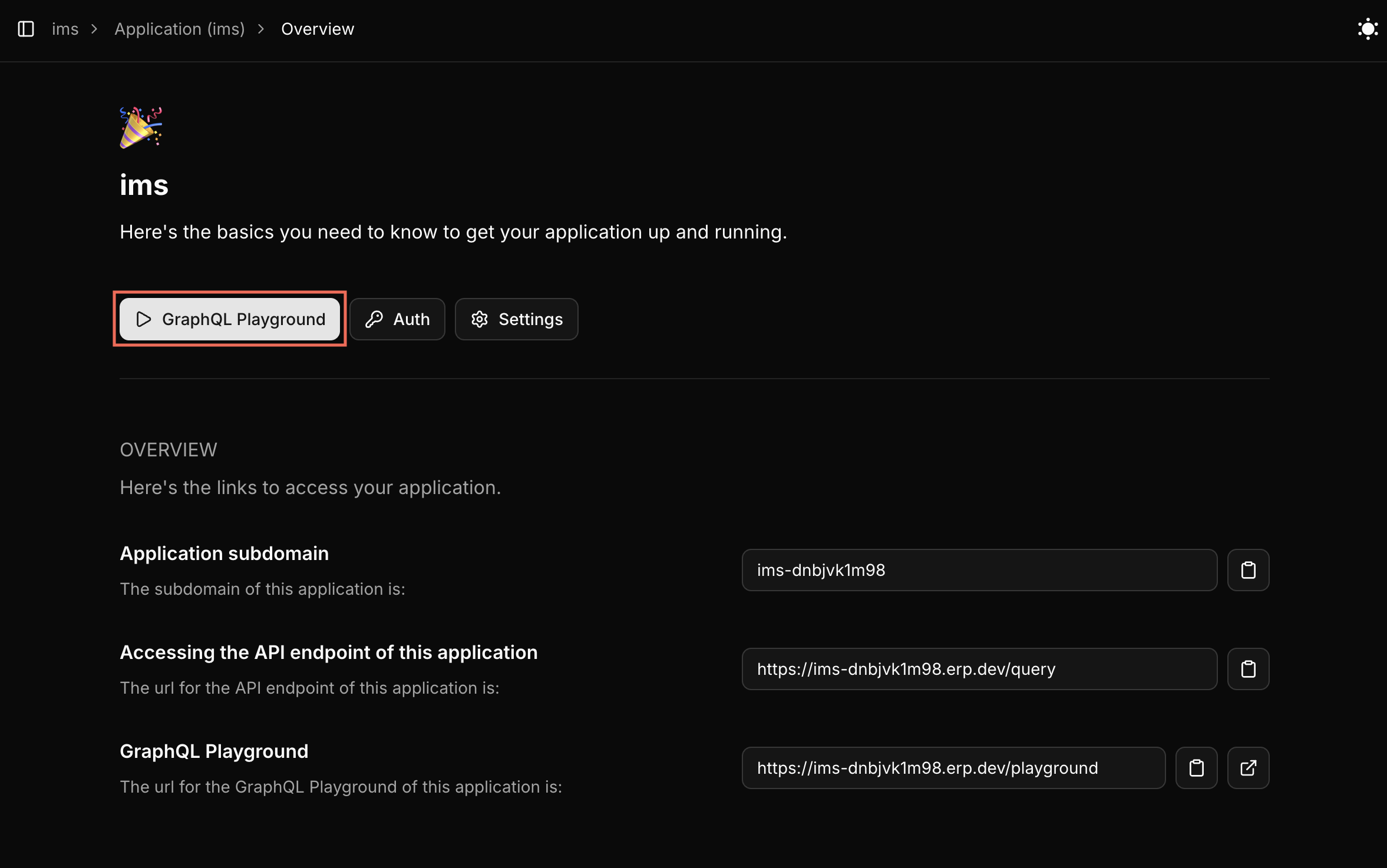
Embedded GraphQL Playground Highlight

This opens an embedded GraphQL Playground with a pre-populated access token, allowing you to execute queries and mutations for the following data operations.
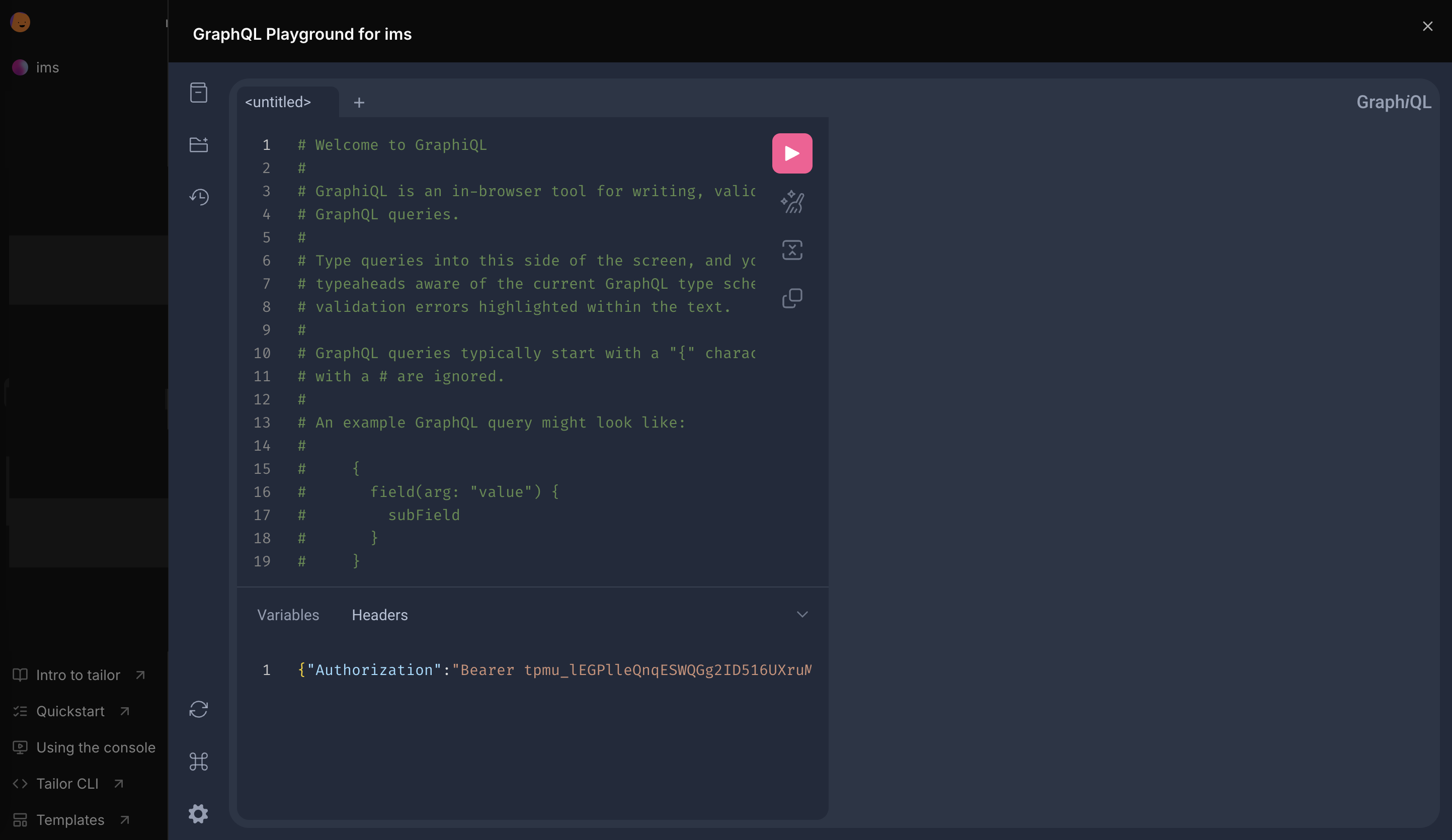
GraphQL Playground

1. Fetch and filter data

Retrieve and refine data using queries to filter and sort the data based on defined criteria. You can refer to examples for filter and sort operations here.

2. Create, update, and delete records

Manage your data dynamically by executing mutations to create new entries, modify existing records, or remove them as needed. You can refer to examples for mutations here.

The application comes pre-loaded with sample data to help you get started. When you're ready to work with your own data, you can import CSV files by following the Import CSV Files tutorial.

3. Validate input data

You can confirm that the input data aligns with the validation rules defined in the schema. To learn more about data validations, refer to the guide here.

Customize your application

1. Set Up Your Workspace

Configure your workspace to match your deployed application. Run the following command to view all the created workspaces.

tailorctl config set -i

2. Update the configuration file

For example, to modify user schema with a new field, add the new field to the user.tf.

<span><span style="color: var(--shiki-token-function)">resource</span><span style="color: var(--shiki-color-text)"> </span><span style="color: var(--shiki-token-string-expression)">&quot;tailor_tailordb_type&quot;</span><span style="color: var(--shiki-color-text)"> </span><span style="color: var(--shiki-token-string-expression)">&quot;user&quot;</span><span style="color: var(--shiki-color-text)"> </span><span style="color: var(--shiki-token-string)">{</span></span>
<span><span style="color: var(--shiki-color-text)">  </span><span style="color: var(--shiki-token-function)">workspace_id</span><span style="color: var(--shiki-color-text)"> </span><span style="color: var(--shiki-token-string)">=</span><span style="color: var(--shiki-color-text)"> </span><span style="color: var(--shiki-token-string)">tailor_workspace.ims.id</span></span>
<span><span style="color: var(--shiki-color-text)">  </span><span style="color: var(--shiki-token-function)">namespace</span><span style="color: var(--shiki-color-text)">    </span><span style="color: var(--shiki-token-string)">=</span><span style="color: var(--shiki-color-text)"> </span><span style="color: var(--shiki-token-string)">tailor_tailordb.ims.namespace</span></span>
<span><span style="color: var(--shiki-color-text)">  </span><span style="color: var(--shiki-token-function)">name</span><span style="color: var(--shiki-color-text)">         </span><span style="color: var(--shiki-token-string)">=</span><span style="color: var(--shiki-color-text)"> </span><span style="color: var(--shiki-token-string-expression)">&quot;User&quot;</span></span>
<span><span style="color: var(--shiki-color-text)">  </span><span style="color: var(--shiki-token-function)">description</span><span style="color: var(--shiki-color-text)">  </span><span style="color: var(--shiki-token-string)">=</span><span style="color: var(--shiki-color-text)"> </span><span style="color: var(--shiki-token-string-expression)">&quot;User of the system.&quot;</span></span>
<span></span>
<span><span style="color: var(--shiki-color-text)">  </span><span style="color: var(--shiki-token-function)">fields</span><span style="color: var(--shiki-color-text)"> </span><span style="color: var(--shiki-token-string)">=</span><span style="color: var(--shiki-color-text)"> </span><span style="color: var(--shiki-token-string)">{</span></span>
<span><span style="color: var(--shiki-color-text)">    </span><span style="color: var(--shiki-token-function)">...</span></span>
<span><span style="color: var(--shiki-color-text)">    </span><span style="color: var(--shiki-token-function)">lastname</span><span style="color: var(--shiki-color-text)"> </span><span style="color: var(--shiki-token-string)">=</span><span style="color: var(--shiki-color-text)"> </span><span style="color: var(--shiki-token-string)">{</span></span>
<span><span style="color: var(--shiki-color-text)">      </span><span style="color: var(--shiki-token-function)">type</span><span style="color: var(--shiki-color-text)">        </span><span style="color: var(--shiki-token-string)">=</span><span style="color: var(--shiki-color-text)"> </span><span style="color: var(--shiki-token-string-expression)">&quot;string&quot;</span></span>
<span><span style="color: var(--shiki-color-text)">      </span><span style="color: var(--shiki-token-function)">description</span><span style="color: var(--shiki-color-text)"> </span><span style="color: var(--shiki-token-string)">=</span><span style="color: var(--shiki-color-text)"> </span><span style="color: var(--shiki-token-string-expression)">&quot;Last name of the user.&quot;</span></span>
<span><span style="color: var(--shiki-color-text)">    }</span></span>
<span><span style="color: var(--shiki-color-text)">  }</span></span>
<span><span style="color: var(--shiki-color-text)">}</span></span>
<span></span>

Manifest files, written in CUE, define your application's configuration. To learn about CUE, refer to the basics here.

For example, to modify user schema with a new field, add the new field to the user.cue in the /services/tailordb/master/user.cue.

<span><span style="color: var(--shiki-token-keyword)">package</span><span style="color: var(--shiki-color-text)"> master</span></span>
<span><span style="color: var(--shiki-color-text)">...</span></span>
<span><span style="color: var(--shiki-color-text)">User: tailordb.#Type </span><span style="color: var(--shiki-token-keyword)">&amp;</span><span style="color: var(--shiki-color-text)"> {</span></span>
<span><span style="color: var(--shiki-color-text)">  Fields: {</span></span>
<span><span style="color: var(--shiki-color-text)">    ...</span></span>
<span><span style="color: var(--shiki-color-text)">    lastname: {</span></span>
<span><span style="color: var(--shiki-color-text)">      Type:        tailordb.#TypeString</span></span>
<span><span style="color: var(--shiki-color-text)">      Description: </span><span style="color: var(--shiki-color-text)">&quot;</span><span style="color: var(--shiki-token-string-expression)">Last name of the user</span><span style="color: var(--shiki-color-text)">&quot;</span></span>
<span><span style="color: var(--shiki-color-text)">    }</span></span>
<span><span style="color: var(--shiki-color-text)">  }</span></span>
<span><span style="color: var(--shiki-color-text)">}</span></span>
<span></span>

3. Apply your changes

After updating the configuration, apply your changes to the deployed application:

<span><span style="color: var(--shiki-token-function)">terraform</span><span style="color: var(--shiki-color-text)"> </span><span style="color: var(--shiki-token-string)">apply</span></span>
<span></span>
<span><span style="color: var(--shiki-token-function)">tailorctl</span><span style="color: var(--shiki-color-text)"> </span><span style="color: var(--shiki-token-string)">workspace</span><span style="color: var(--shiki-color-text)"> </span><span style="color: var(--shiki-token-string)">apply</span><span style="color: var(--shiki-color-text)"> </span><span style="color: var(--shiki-token-string)">-m</span><span style="color: var(--shiki-color-text)"> </span><span style="color: var(--shiki-token-string)">./workspace.cue</span></span>
<span></span>

4. Verify your changes

In the console, you can see the new field added to the user schema on the overview page.
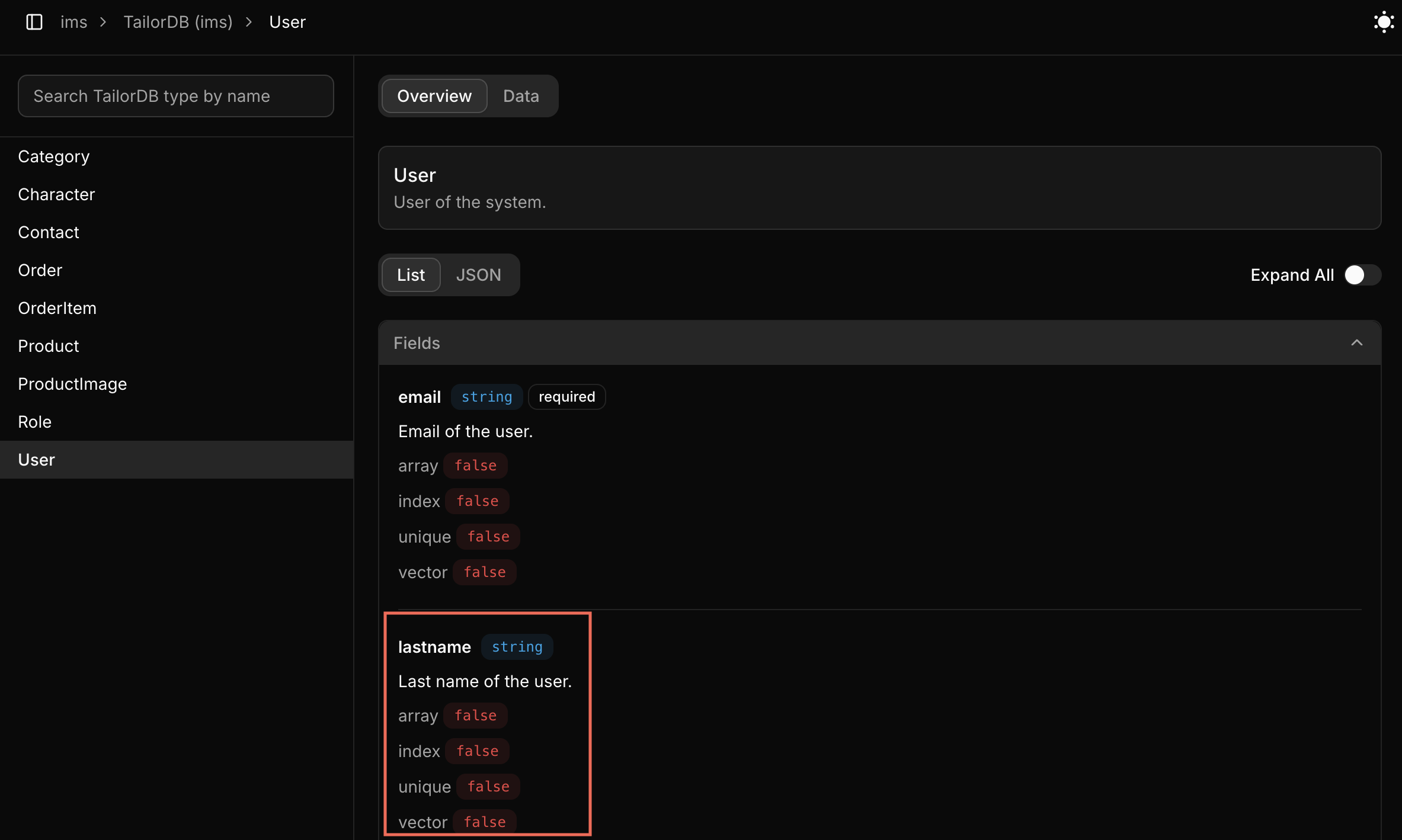
Schema overview page

Troubleshooting

If you encounter issues:

  1. Verify your workspace selection
  2. Check your configuration file