Appearance
Import CSV files
CSV files are plain text files that contain tabular data, with each field separated by a comma.
To import data from a CSV file to the TailorDB, you can use the Console.
1. Select workspace
Log into the Console, select the workspace, and click on TailorDB -- main-db option.
2. Select type
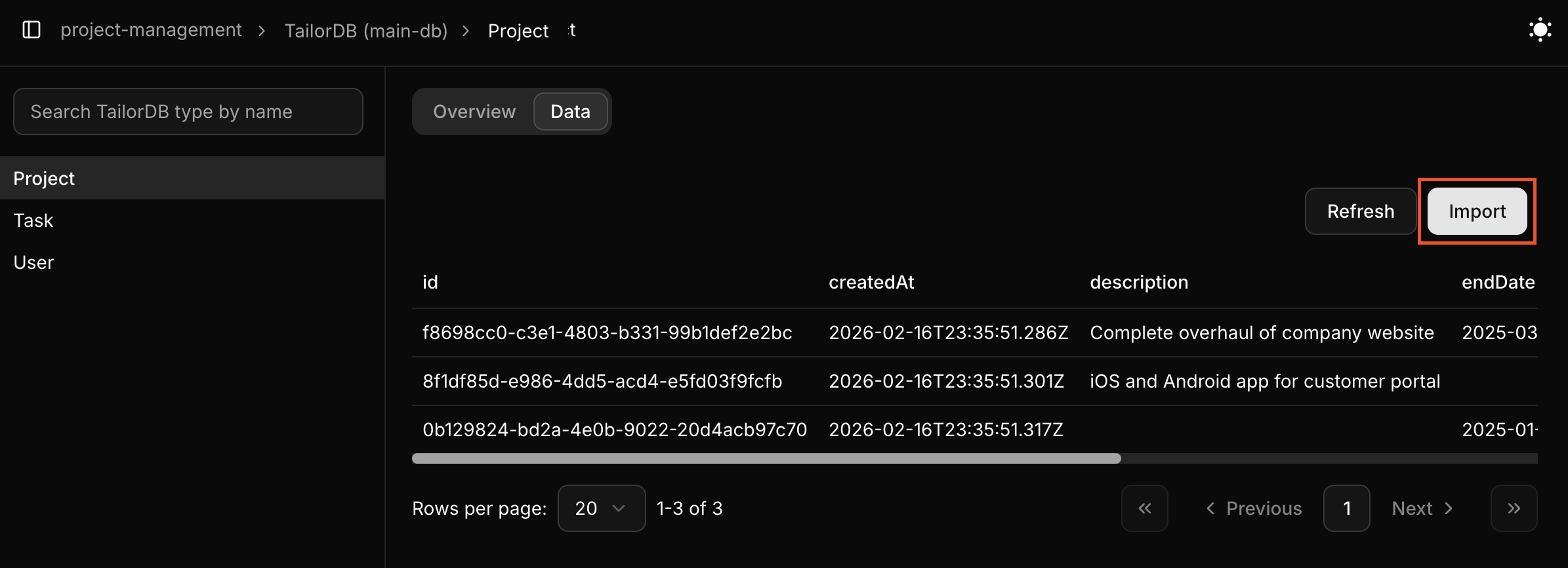
Select Project type, choose Data tab and click on import button.
3. Upload a CSV file
Here you can download the template by clicking on the button Download Template. The example.csv file contains the header of the file.
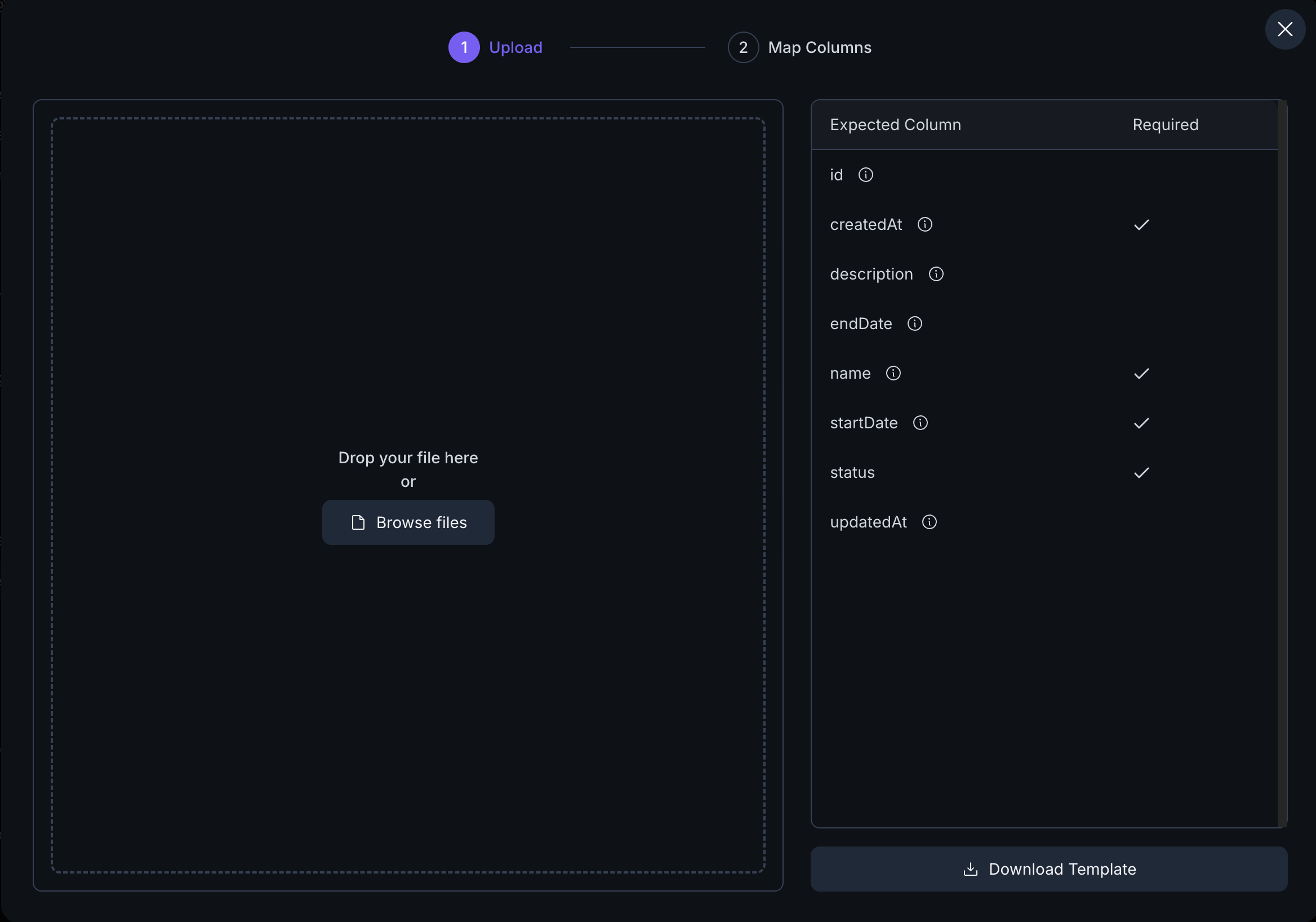
id,name,description,status,startDate,endDate,budget,priority,createdAt,updatedAtAdd the following data to the example.csv to create a new product in TailorDB.
Website Redesign,Complete overhaul of company website with modern UI/UX,IN_PROGRESS,2024-01-15,2024-06-30,2024-01-10T10:00:00Z,2024-02-09T15:30:00Z
Mobile App Development,Develop iOS and Android mobile applications,PLANNING,2024-03-01,2024-12-31,2024-02-01T09:00:00Z,2024-02-09T14:20:00Z
Marketing Campaign Q1,Launch new product marketing campaign,COMPLETED,2024-01-01,2024-03-31,2023-12-15T08:00:00Z,2024-04-01T16:45:00Z
Infrastructure Upgrade,Upgrade server infrastructure and cloud services,IN_PROGRESS,2024-02-01,2024-05-31,2024-01-20T11:30:00Z,2024-02-08T10:15:00Z
Customer Support Portal,Build self-service customer support platform,PLANNING,2024-04-01,2024-09-30,2024-02-05T13:00:00Z,2024-02-09T09:30:00Z
Database Migration,Migrate legacy database to modern architecture,COMPLETED,2023-06-01,2023-12-31,2023-05-15T07:00:00Z,2024-01-15T18:00:00Z
4. Map Columns
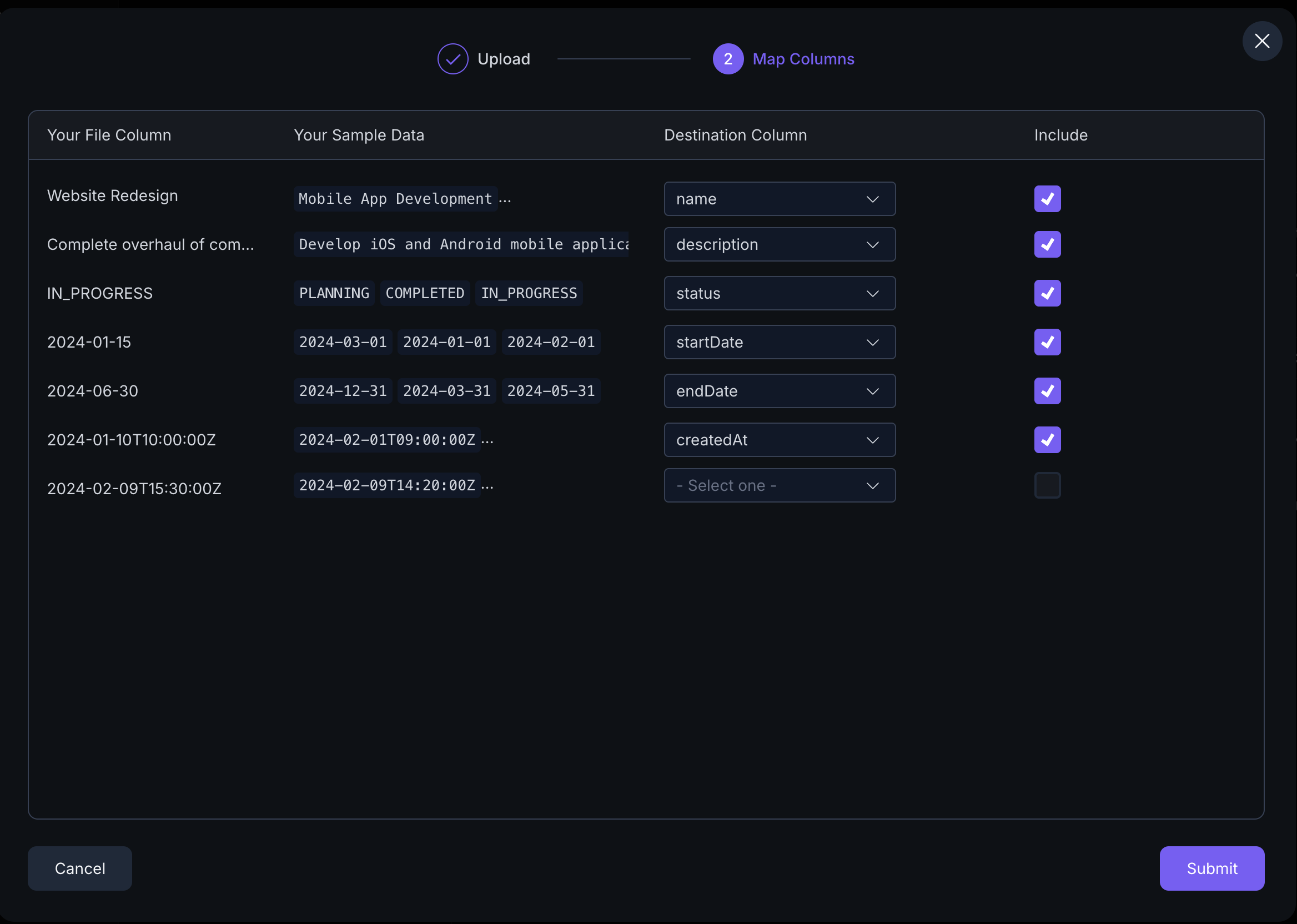
You can include the columns into which you want to insert data. Click on Submit after making your selections.
5. Verify the import
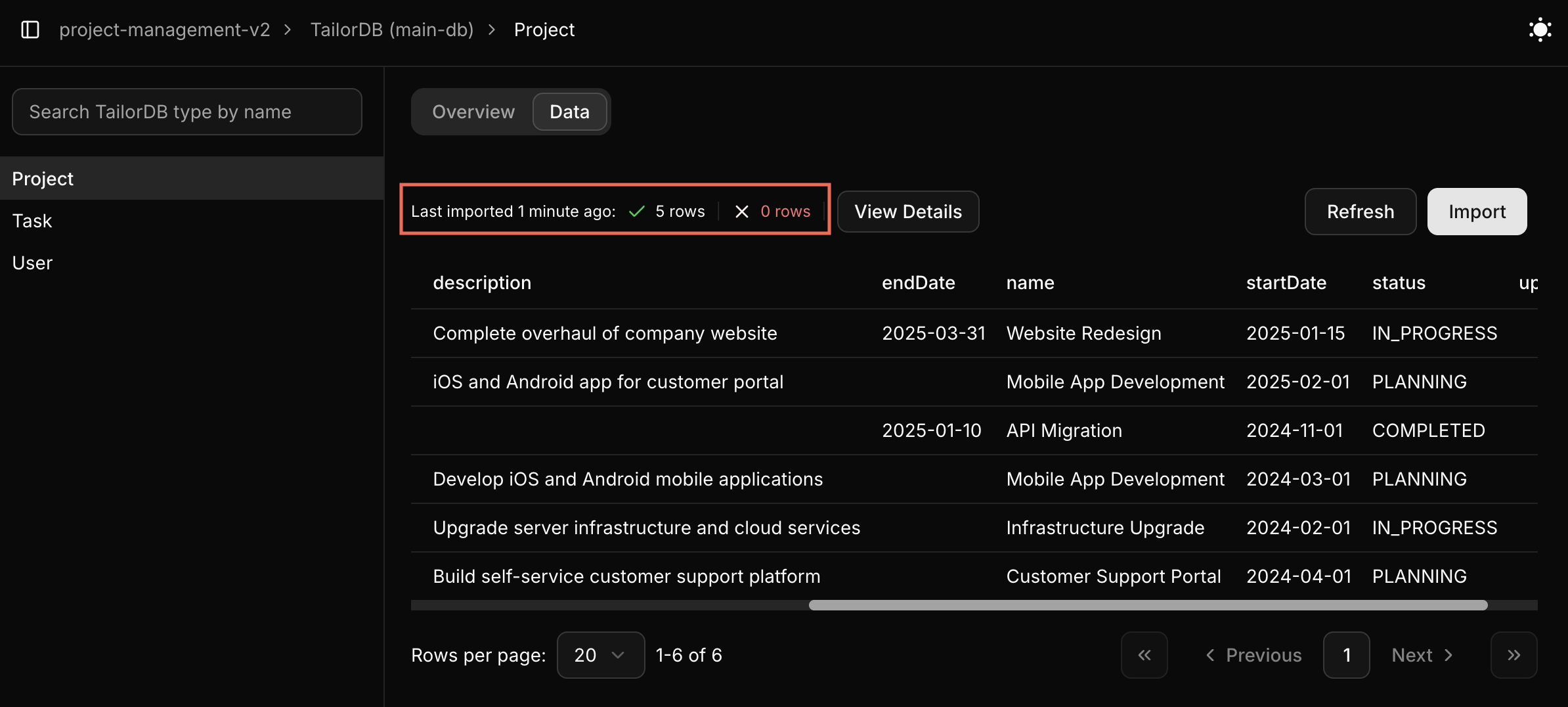
After completing the import, the table populates with the new data, and a message displays details about the number of imported rows.